
May 9th 2014: This page is currently being updated for the upcoming Qmenu 1.0 release and is therefore incomplete and WIP –
stay tuned please.
A customizable menu system for Softimage
Stefan Kubicek & Eugen Sares
What it is in a nutshell: QMenu brings most frequently used functions and commands closer to the mouse cursor by using a configurable Quad-Menu system (e.g. as in 3dsMax and Mirai). Since there are thousands of commands in Softimage, we cannot foresee every individual requirement and use case, hence it can be configured in a user-friendly way through clicking only. Yet it is also extendible through scripting if a deeper customisation or flexibility is needed. In fact, many aspects of QMenu are script based so that it can be customized on a very low level without having to change the actual plugin source code.
What you get: A ready-made menu system that is mostly geared towards modelling and shading, with some additional menus for hair styling, scene and viewport management. You can extend and build upon this base configuration, or create a completely new one from scratch, all using a graphical user interface.
Example screenshots
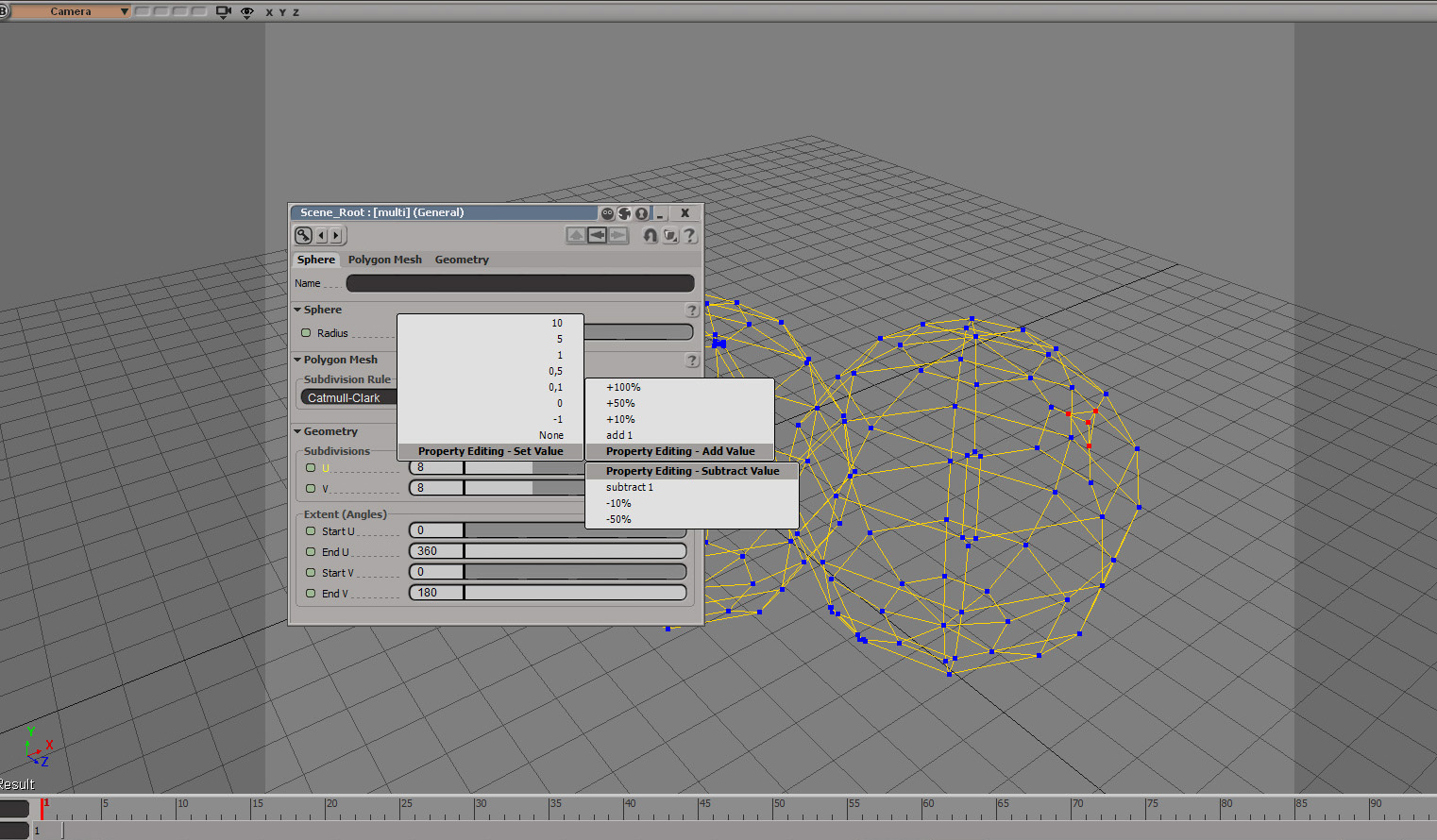


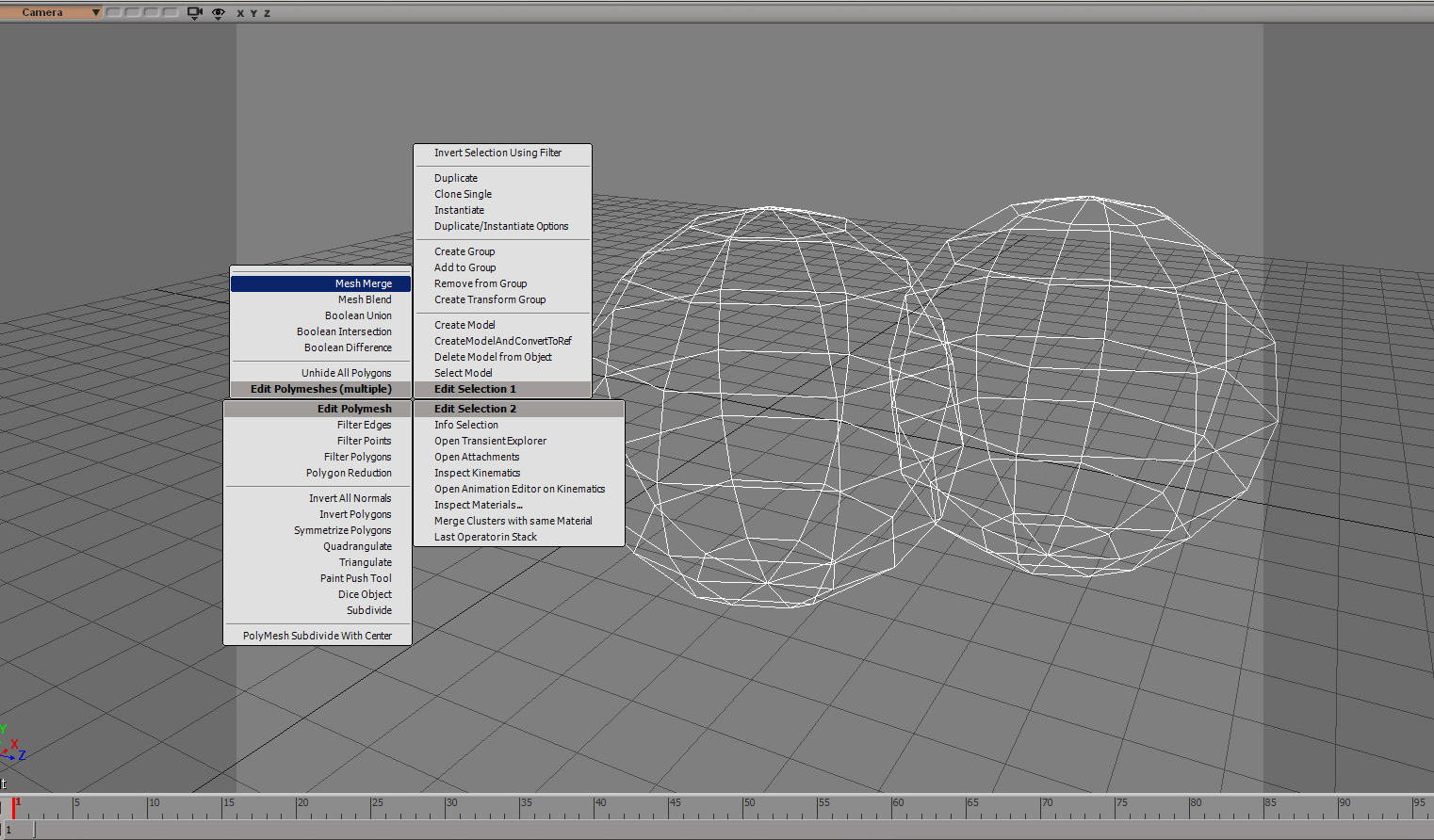


Steven Hawking once wrote in his famous book, A Brief History of Time: „I was told that every mathematical formula in my book will reduce it’s potential number of readers by 50%.“ We think the same is true about any art tool, hence also QMenu. The more scripting knowledge you need to make use of it, the less people will use it. Therefore, we tried to come up with a system that does not require any scripting at all, at least for the general things it was meant for. As a normal user, you will hardly ever find a reason to do any scfripting for QMenu, but if you need to go beyond that, you can still go in and do some crazy things with scripting.We spent quite a lot of time not only designing the base menu configuration Qmenu comes with, but also on making it feel well integrated into Softimage and as seamlessly as possible (look and feel of the menus, sticky-keys, etc).
Installation
- Download the QMenu 1.0 addon or zip file from http://code.google.com/p/keyvis-dev/
- Either drag and drop the addon into Softimage, which will install it in your user addons folder, or use File->Install Addon for more options (like installing in a Workgroup), or unpack the zip file to a folder of your choice and connect it as a workgroup.
- If all went well you should now see a new menu item called „QMenu“ appearing in your main menu bar at the top of the Softimage window.
- Enable QMenu from it’s pull-down menu or from it’s Configurator.
- Assign display commands (QMenuDisplayMenuSet_0 to 3) to hotkeys of your choice, or define display events if you don’t want to change your keyboard mapping.
Features
- Unlimited number of context-sensitive (e.g. based on the current selection) quad menus per view.
- Softimage look and feel.
- Sticky key support (QMenu stays open if key is only shortly pressed, or when pressed for longer, disappears once released) .
- User friendly customization interface (a custom PPG) to edit Quad menus without scripting (you can script most aspects for advanced and extended functionality, but you don’t need to in order to use it’s main functions).
- Infinite nestability of menus and sub-menus (Recursive nesting is supported, contrary to 3dsMax, which crashes when you try to nest a menu in itself 😉 )
- Menus can contain Softimage commands, scripted menu items and switches, or other menus.
- Quads can be displayed using either commands assigned to hotkeys of your choice, or „display events“, which can be defined and edited in the QMenu Configurator.
- Easy command-repetition of last used command or script item by clicking on one of the menu titles at the center of the Quad (3dsMax-Style).
- Loading and saving of XML-based configuration files. The last saved configuration is automatically loaded at startup. When overwriting an existing configuration file, a backup with a unique time stamp is created of the existing file before it is overwritten -> You can play around and always return to a previous version if you mess things up.
- User preferences store per-user QMenu configuration settings and key events, like the configuration file name and path, or whether QMenu is activated or deactivated.
- Extensive set of ready-to-use and customizable menu sets for viewport manipulation, modeling, rendering & shading. More menu sets (e.g. for animation) are currently WIP.
- Extensive set of predefined ready-to-use context objects for your own new menu sets or to extend and customize existing menu sets.
- Dynamic menu content (scriptable). E.g. menus could hold one menu item per light object in the scene for quick selection, or inspection, etc, depending on the content of the current scene.
- Scriptable contexts, menu items, switches and menus. All of them support either Python, JScript or VBScript as scripting language.
- Supported Platforms: Softimage 7.0 to 2015 on Windows XP, Vista, 7, 32 and 64 bit. Yeah, sorry, no Linux.
- On the fly editing of scripted items. Change your code and test your changed menu, menu item, switch or context right away. No need to restart Softimage or reload the plugin.
- Association of Quad menus and views is not hard coded . If you have created your own relational view or custom view, you can easily add a QMenu to it.
- Editing of Menus in Render Tree and ICE Tree „on the fly“. Hold the Shift-Key while clicking on a menu item to add the currently selected ICE or shading node to that menu, or hold the ALT-key while clicking to remove it. Menu items added in this way will also be saved to the configuration and are available at the next session just like everything else.
Version History
1.0 Mai 5th 2014: Bug fixes and final release
This release introduces a new and optimized configuration interface, lots of cleanup and additions to the default menu configuration, and a lot of bug fixes. It has been used more or less unchanged ans has prooven to be a tremendous time safer throughout the last three years in every day production at keyvis without any known adverse side effects. Unfortunately, due to the announced EOL of Softimage, we are not going to add the last big features we had planned: The PyQt/PySide-based Menu renderer and configurator (with drag & drop-support), and native Softimage menu editing (ability to add Qmenus to native Softimage menus).
New features since v0.95
- Simplified and improved Configurator GUI (less GUI elements and menu management, practically all operations can be performed on the main Tab)
- Removed dependency on Custom Preferences. All prefs are stored as Userprefs directly, there are no custom preferences anymore (and no custom user preference Property). As a result, the addon can now be installed and used directly without having to restart Softimage, the main menu’s item to open QMenu preferences is now gone, and the configuration file Path is now solely defined in the Editor, instead of two places (Editor and custom Prefs Property). This avoids a couple of special cases and race condition handling, making the loading code more robust and less complicated.
- Qmenu is aware of emtpy component selections (an object is selected and a subcomponent selection filter is active, without any actual components selected, which is an undefined selection state) now and returns the „highlighted“ base object as a context parameter for scripting. See the scripting guide below for more info on context parameters.
- PPG parameter editing menu has been refactored to allow editing of compound parameters and non-X3dObjects (new menu item code, added a new „Nonx3DObjects“ context parameter, See scripting guide below for more info on context parameters. )
- Unicode support for hotkeys, scripted contexts, item and menu code
- Implemented code folding and syntax highlighting for item and context code widgets. The documentation in the Softimage SDK about these features was simply wrong.
- More reliably recognize floating viewports under mouse, and added support for the Nth floating view (e.g. ICE Tree, render Tree…) not just the first one of each kind.
- Cosmetic change: Globally Renamed „View“ to „Anchor“ do indicate that Menus cannot only be attached to 3D views but pretty much any discernible GUI element in Softimage.
- Added „AddMenuSet“ method to the QMenuAnchor class
- New command: QMenuDisplayMenuSetbyName
- Ask user to save config file when exiting Softimage, even when menu items were only added on the fly (via ICE and Render Tree Menus).
Bug fixes
- Fixed QMenu rendering on Multi-Monitor setups
- Fixed: oQMenu referenced before assignment when no cfg file is loaded and Display key is pressed
- Fixed: When changing the „“Script is a Switch flag““ in the QMenu Editor, the menu list box does not update to show (sw) instead of (s)
- Suppressing Qmenu debug messages allows proper copy/pasting from the script line and editor (avoiding a race condition)
- Enabled/Fixed in-place editing of ICE Tree menus for all Menus, not just MenuA
- Support for all Floating and Docked views. Not all views have an assigned menu yet, but they could have, from a technical point of view
- Fix: When Auto-Show Menu.. is set, Anchor Selector is not greyed out anymore when closing and opening Qmenu Editor
- Fixed: Getting the ViewportUnderMouse failed when using a non-standard Layout
- Hardened View operations for floating views by setting mouse cursor back to where it was when invoking the QMenu (switching to Top, Left, Right View etc. didn’t work in floating views like the Object View)
- The command „Open Qmenu Editor“ now makes sure that only one Property editor is displaying the QMenuConfigurator Property (avoids dependency loops)
- Fixed: Insert Item button was not re-enabled after creating a new script or switch item – Fixed.
- Implemented push-buttons instead of check boxes for recording Anchor signatures and key events. Push-Buttons were an undocumented feature of the Softimage SDK.
- Context Execute button and code widget are now automatically disabled when no context is selected.
- Command OpenQmenuEditor allows key assignment and loggs to the script editor
- Fixed: View editing Menu items (Top, Left, Front View etc) didn’t work reliably in floating views like Object View.
- Select Model command failed (because default value is not correctly initialised by the command – Softimage bug) -> Converted to a scripted command.
- Updated the Polymesh (or components) and Cluster & Components contexts, they now return „True“ for selected clusters on Polymeshes. As a result, the Edit Mesh – General menu is also shown when only a cluster on a Polygonal mesh is selected (previously would not show)
- Added QMenu awareness of differently named Face Robot Anchor Manager („frmAnchormanager“ instead of the usual „vm“).
Configuration file changes
We streamlined the existing menu configuration, added missing commands and scripts or removed redundant ones. Here are slome of the more obvious ones:
- Added Hair Editing Menu to Modeling MenuSet.
- View Editing Menu: Set Visibility: Added „Set Xray Opacity“ Menu and Menu Item.
- View Editing Menu: „Display Wire on Shaded“ and Headlight Display Mode now use switches and not commands (the checkmarks are better recognizable).
- Added various view-specific menus (Schematic View, etc).
- Added hierarchical parenting and View/Collapse all nodes to Schematic View Menus.
- Added Teak Normals Tool to the „Edit Polymesh (general)“ menu.
- Added „Copy Clusters from Source to Target Obj(s)“ menu item.
- Replaced Set Crease Edge Vertex command with a scripted Set Crease Value menu item since the command name was misleading. It now works also for vertices -> added to vertex and edge editing menus.
- Removed duplicate „Collapse“ from Edit Polymesh Edges, was already in the Edit Polymesh (general)
- Added „Hide Unselected“ Command to the „Set Visibility“ Menu
- Added „Add/Create Cluster with Center“ (Deform By Cluster Center with Nulls creation“) to the „Create Cluster“ menu
- Added „Hide & Unhide Instance Masters Recursive“ to the visibility Menu. This one is a huge time safer for working with references and instances.
- Added „Null“ Class object awareness to the „Any Object“ Context
- „Disable CAV display“ item added to the shading and modeling menus, as well as Paint Vertex Color Tool and Paint Tool Properties Editor.
Known Limitations
- Hair editing menus sometimes call the wrong hair editing command. Softimage bug?
- Explorer View in XSI Explorer’s right side pane is not recognized as another view, the first one on the left hand side is returned.
- „+“ and “ -“ symbols in Menu Item names should be avoided (Softimage GUI bug interprets „+ <number>“ as an int instead of a string, which prevents proper sorting)
Please also visit our bug tracker on google code for a list and current status of known bugs, or to report bugs:
http://code.google.com/p/keyvis-dev/issues/list
Documentation changes
This documention has been updated and restructured. A scripting section was added – see below. If you want to customise your menus beyond the standard functionality that QMenu offers, this is the place to start reading up on what can be scripted, and how.
Terminology
Menu Set
A Menu Set describes the sum of all context-sensitive top-level menus (a maximum of 4) in a Quad menu along with it’s sub-menus. There can be as many sub-menus as you wish, and they can be nested as deeply as you wish. Contexts are evaluated before a menu set is displayed on screen to determine which menu should be displayed in each of the four main menu quadrants, depending on certain conditions (e.g. the type of currently selected objects), so a menu set usually consists of many more menus than those being displayed on screen at any given time. E.g. some menus are only visible when working with Curves, others when working with Polygons, etc.
Anchor
You can associate menu sets with each window or part of a window in Softimage (e.g. main 3d views, the script editor toolbar, shape manager, etc). The window or window areas that have a menu set associated are simply called anchors. An unlimited amount of menu sets can be associated with any anchor.
Menu Context
These are user-editable scripts assigned to menu sets which always evaluate to either True or False. QMenu ships with a great number of ready-to-use contexts of all kinds and for almost any object type to choose from. Advanced users can use any scripting language to write a display event, or simply use or alter one of the existing ones. All scripting languages are supported, with python being a little faster because the code is executed natively instead of using the ExecuteScriptCode command, which is pretty slow and can lead to slight delays in heavy and complex menus with lots of submenus and therefore lots of contexts to evaluate.
Display Context Example: A display context script may evaluate to True if the selected object is a polygon point. One could now associated a menu with this context that contains only operations suitable for polygon point editing. If there are potentially more than one display contexts evaluating to True in the current menu set for the current view, the menu associated with the first display context evaluating to True will be displayed. Therefore, the order in which display contexts are defined for a given view does matter. This order can be changed at any time by moving display contexts up and down in the Menu Set’s list of menus in a given quadrant to change the order in which they are evaluated. Contexts are evaluated bottom to top.
Menu
A menu contains the actual menu items a user can click on. A menu may have associated script code which gets executed before the menu is displayed. Advanced users might find this useful to fill a menu with items on the fly (dynamically) depending on certain conditions or content in the scene. Menus usually contain fixed menu items that are saved to, and loaded from, the configuration file at startup or when the user saves or loads the configuration manually. It may also contain temporary (dynamic) menu items which do not get saved to the config file. Such dynamic menu items are usually created through the menu’s associated script code (see above).
Example: A menu could display a list of existing lights in the scene for quick selection or inspection. Since such menu items are only meaningful in the current scene, they should be stored in the menu’s temporary menu items list so they don’t get saved in the current configuration file by accident once it is saved – the items would most likely not be meaningful in another scene where lights might have different names.
Menu item
These can be :
- Softimage commands (native or custom)
- Other Menus, which are displayed as sub-menus (but no native Softimage menus due to current limitations of the Softimage SDK)
- Scripted Menu Items and Switches (a special type of scripted item to switch between boolean values, mostly used to change Softimage preference Values from a QMenu).
Key Events and Display Commands
Menu Sets can be displayed either by calling one of the predefined custom display commands numbered QMenuDisplayMenuSet_1 to QMenuDisplayMenuSet_4, which can simply be bound to hotkeys, or by defining key events in the QMenu Configurator. Display key events are faster to set up and they override Softimage’s hotkey assignment for as long as QMenu is enabled. If you prefer regular hotkeys then simply bind QMenuDisplayMenuSet_1 (to 4) to keys of your choice using the Keyboard Mapping editor. You may define as many key events as you wish, but we assume that usually no more than four should suffice as it becomes increasingly hard to remember the different keys needed to display different Menu Sets. Hence there are currently also only four QMenuDisplayMenuSet commands available. Should you ever need more, just let us know so we can implement more commands, or you can simply use display events, of which you can add as many as you need without having to alter the QMenu plugin code. You can of course also use a mixture of commands and display events.
0.95 – Aug. 3rd 2011: Update and bugfix release
New features video:
Plugin Changes:
- Softimage 2012 compatible
- Menus in Render Tree and ICE tree can be edited on the fly without using the Conigurator
- More homogeneous and verbose Error reporting when executing Menu Item’s, Menus or Context’s code manually
- View Signatures can now be much shorter and generic. As a result, viewer menu sets need to be defined (e.g. the same menu set can be used for docked and floating PPGs instead of two separate ones)
- 2012 only: More reliable command execution by using a delayed timer event to ensure that clicked menu items are executed after any QMenu code has finished executing. Background: Pick sessions now work from within timer events, this seems to have been fixed in 2012, though it was never documented.
- 2012 only: Using new check mark feature in main QMenu menu to indicate if QMenu is activated or not instead of differently named menu items.
- Added QMenuGetGlobalObjectByName command
- Added more items to the scripting context object: DisplayContexts, CurrentXSIView, ClickedMenu, ClickedMenuItemNumber, SoftimageMainVersion
- You can now specify a non-existing file in the Configurator’s or Custom preferences‘ file browser. Previously a new name could only be specified in the edit line directly, the browser expected an existing file.
- OpenQMenuConfigurator will now open the PPG in Locked mode.
- Added „Move Up“ and „Move Down“ buttons for View reordering to the Configurator PPG
- Slight PPG facelift. Some Configurator Parameters, Buttons, Headlines and descriptions were renamed or rephrased to make them easier to understand by new users.
- Introduced „Scan Depth“ Parameters for Menu, Menu Item and Context objects as a means to speed up data collection of selected scene objects for the script context object in cases where many objects are selected (which could potentially take longer and cause delays in mennu rendering. Objects are now only scanned for useful data up to the greatest number specified in any of the QMenu objects during a menu display session.
- Renamed Command „Open QMenu Editor“ back to „Open QMenu Configurator“ for more consistency with existing QMenu class names.
- Bug fixes and code cleanup across the board.
Default configuration file changes
- Added Backface culling Switch Item to Views Menu Set
- Cleaned up and added more useful items to the Marked Params editing menu set
- Added scripting preferences menu over the script editor button. Includes a „Open Plugin Manager“ item for faster access to the Plugin Manager.
- Arnold Standin item removed from shading Menu Set, Arnold standins are no longer a separate object in current versions of Arnold.
- Some Cosmetic changes to menu names and item order
0.91 – Feb. 10th 201: Initial public release
Features videos:
Workflows and general functionality – What’s already there?
Basic customisation – The QMenu Editor
Plugin components
- QPop.32.dll and QPop.64.dll, C++/.Net plugins, compiled for Softimage 7.0 to 2011 – 32 and 64 bit. They implement the QMenuRender command, which renders the menu set described by a string. It returns the menu number and item number clicked by the user.
- QMenuConfigurator.py, a Python plugin, which implements the QMenu Editor for menu configuration, as well as all QMenu object classes, commands, menus and events. It also loads and parses the menu configuration file at startup.
Scripting Guide
This is not a scripting primer, you should already be familiar with scripting in Softimage. Before reading on you might want to check the „Terminology“ section on the main page. Explaining scripting in Qmenu works best by describing what happens inside Qmenu before a menu set is finally displayed on screen…
Chain of execution
Getting input from the user and determining which menu set to display
- The User presses a key. An OnKeyPressed event is called that checks all defined Qmenu key events if the pressed key matches any of them. These key events are visible and editable on the first tab of the QMenu configurator (the „Key Events“ tab) and are evaluated top to bottom. If no match is found (none of the defined key events key codes matches that of the key the user just pressed), Qmenu does nothing and the event is passed on to Softimage. If a matching key event is found, it takes note of the number of the event , stops checking and consumes the event (i.e. the event is not passed on to Softimage). In case one of the provided commands was used to display a menu set instead of a key event, QMenu will take note of the number of the command (atm there are only 4 commands defined, we simply never had a situation where we needed more than 4 different menu sets for a given anchor) and carries on to step 2 below.
- Qmenu determines the signature of the GUI element under the mouse. The signature is a concatenated string of the GUI elements names under the mouse cursor and all subsequent parent GUI element names up until the main Softimage Application window, which makes it unique and well distinguishable. It then and checks whether any of the existing Anchors has a matching signature or at least a sub-string of that cocatenated string . An anchor is nothing more than a piece of GUI that is identifiable by it’s signature and has been given a user-definable name. Each Anchor can have any number of menu sets assigned (e.g. the main 3D view has by default a total of 4 menu sets assigned – one for viewport operations, one for poly- and NURBS modeling, one for shading and one more for primitive generation. Anchors are listed and can be edited in the QMenu configurators „Main Configuration“ tab, top left.
Preparing the menu set for display
- Once an anchor with a matching signature is found it stops checking any additional anchors and prepares to display the menu set that has the same number as the key event you pressed. That is: If you pressed the key associated with your first key event (or called the first QmenuDisplayMenuSet command), the first menu set stored in the anchor will be shown, in case you pressed the second it will attempt to display the second menu set (if any), etc. Menu sets are listed on the QMenu configurators „Main Configuration“ tab, right besides the Anchors list.
- A Menu Set can display a different menu per quadrant, depending on each quadrants menu contexts (these contexts are little scripts, that make QMenu so flexible, read below for more details). Each Quadrant of the menu set (A,B,C and D) may have as many contexts assigned as needed, and again, they are evaluated top to bottom. That is: Qmenu will evaluate every context per quadrant until it finds one in each of them that returns „True“. For example, it could be that a context only returns True if the first selected object needs to be a polymesh, or that at least two objects need to be selected,or… there is really no end to what you can specify in a context as long as you can script it. In fact, there are no hard-coded contexts in QMenu, they are all scripted and can be created, managed, and deleted via the configurators „Menu Sets & Contexts“ Tab. Like with any scriptable aspect of Qmenu you may choose your scripting language from Python, JScript and VBScript, though Python is highly recommended for better speed of execution. Take a look at the list of contexts that come with the default configuration of QMenu, you will find that it is most comprehensive and you hardly will ever have to resort to writing your own. Yet, if you find you need to, you might want to take a look at the exsisting ones or even reuse one of them to build your own from existing code. Ultimately, there are only two things of importance regarding contexts: The entry function name must not be changed („QMenuContext_Execute“) and the function must return a boolean (True or False). For convenience, QMenu collects a lot of data about your scene just before menu contexts are evaluated, such as the current selection, class names, type names, parent object names, the current QMenu object (in this case the context itself), the current XSIView, and various other, frequently relevant things in Softimage, and makes this data accessible through the input parameter object (oContext) that gets passed into the contexts QMenuContext_Execute function as an argument, from where you can access it from your script code. For a complete list of parameters collected please see the „Qmenu Function Context Object„ documentation below. To edit the script code of a context, select the context from the list box named „Available Menu Contexts“ on the „Menu Sets & Contexts“ tab, then use the code editor to make your changes. Click anywhere outside the editor to accept the changes. To test the code just invoke a menu that uses the context, or use the Execute button above the code editor.
- Once a context per quadrant has been found evaluating to True (or the bottom of the context list per quadrant has been reached) the respective menu associated with the context is prepared for each quadrant. Note: Context – Menu-Association can be inspected and edited in the list box next to the Quadrant selector on the Main Configuration Tab, e.g. have a look the the Modeling menu set of the 3D Views Anchor, it has a lot of contexts and assigned menus. The preparation starts with evaluating the menu’s scripting code, if any. Most menus in the default configuration don’t have or need any scripting code, they usually only contain the default script function and a simple „pass“ statement, and they usually have their „Execute menus Code“ Flag disabled for performance reasons (even evaluating just the default pass statement for each menu can add up and become slow for many menus, e.g. when there are a lot of submenus to prepare). You will find that in most cases a menu just needs to store static menu items, but for some things it’s really convenient and enabling to be able to create dynamic menus and menu items, depending on the situation. One example of such a menu is the camera selector menu called „Camera Inspector (+CTRL to select only)“. It has the execute flag enabled and it’s scripting code creates a menu item per camera in the scene for quick selection and inspection from the menu. Check it out and see how it works, it contains everything you need to know about making use of scripted menus. Like for menu contexts, the function name must not be changed, however, it does not need to return a value. It also has the convenience of the context parameter object being passed into the function, which provides the same data as in the previous context evaluation phase. Whats interesting to note is that when you add itmes to the menu through its script code, you can choose to add them to it’s regular items list (which gets saved with the configuration) or the temporary items list, which does not get saved. In the example of the camera selector, menu items for each camera are added to the temp list of items since every scene is different and you wouldn’t want to permanently store those menu items – they most likely would not make sense anymore in another scene. To edit a menu’s script code select the menu from the list box in the lower section of the Main Configuration Tab („Existing Menus“ Section) and use the code editor at the bottom to edit it’s code. To accept the changes just click anywhere outside the script editor. You can test your code by invoking the menu or using the execute button above the code editor, no need to save the configuration file first.
Executing the chosen menu item
- Once the user clicks on a menu item, the menu set is closed and the chosen item is executed. An item can either be a Softimage command, a script item or a switch item (which is also a script). Commands are simply executed directly, and so are script and switch items. The latter again have the usual parameter context object passed into the function as an argument for convenience. The difference between script and switch menu items is that the name for their main function call is different („Switch_Execute“ vs „Script_Execute“), and that a switch needs to have a second function called „Switch_Init„, which always needs to return a boolean (True or False). The Switch_Init function gets called during the menu preparation phase to determine wether the checkmark should be rendered in the menu next to the item name. To edit the code of a script or switch item, simply selsect it in the list box towards the bottom of the Main Configuration tab called „Existing Switch and Script Items“ and use the code editor below to edit the code. To accept your changes just click somewhere outside the code editor. You can test your code immediately by invoking a menu and calling the changed item from there, or just use the Execute button above the code editor. Btw, the list of items per menu can be inspected and edited via the list box on the Main Configuration tab called „Edit Menus Content“. By default, this list box shows the items of the menu that is currently associated with the chose context in the selector on the left side, but you can choose to edit an arbitrary menu by disabling the Auto-Select menu checkbox above and selecting the menu manually from the drop-down list below the check box. To get a better feeling for what scripting a menu item take a look at existing scripted menu and switch items.
The Parameter Context Object and the Scan Depth parameter
As described in the scripting guide above, every scriptable object of Qmenu (Scripted items and switches, Menus and Menu Contexts) is provided with an input parameter object that provides a lot of useful, frequently used data about QMenu and the current scene. This is not only a convenience feature, but also a performance optimisation, as frequently used data (like the currently selected objects and their types and class names) do not need to be queried repeatedly, but only once, and are then available to all scripted objects that are evaluated during the course of a menu invocation and subsequent menu item execution. Because a lot of data can be collected in many cases, it can still become „slow“ to collect (any delay between user input and expected reaction on screen greater than 0.2 seconds is considered disturbing by most users), but in general Qmenu stays well below that 0.2 second barrier on decently fast, modern systems. This is also due to the fact that it uses another performance optimisation which allows it to only collect the data that is required by the respective Qmenu object while it processes its way down the chain of execution, as described in the scripting guide above. However, the respective Qmenu object cannot know automatically how much data is enough, hence we added a parameter to every scriptable object class, the „Scan Depth“ that acts as a hint on how many objects from the current selection need to be mined for data. E.g. in many cases a context only needs to know the type or class name of the very first selected object to make a decision on whether it should return True or False, the other (for example’s sake) 500 selected objects have no influence and hence, need not be minded for data, speeding up the data collection tremendously. Another reason for using such a parameter object is that it encapsulates a lot of code that otherwise would need to be rewritten for each and every scriptable object, making the system more error prone and harder to maintain. If the Scan Depth increases during execution (the context specifies the Scan Depth as 2, but a subsequently called object (e.g. a scipted menu) requires a higher number, say 5, the data of the remaining 3 selected objects is also collected and added to the already collected data, instead of recollecting the data from all 5 objects from scratch, which safes processing time. This also implies that the amount of data collected during a single menu invocation can only grow, if later objects have smaller Scan Depth values than previous ones the data remains untouched, it never gets reduced or deleted. The following is a list and description of the parameter objects parameters and data types.
oContext.CurrentScanDepth <int> Holds the current scan depth value of the currently selected data.
oContext.ThisQMenuObject <object> Holds a reference to the currently processed Qmenu object. E.g. during execution of a menu object’s script code it will hold a reference to this menu object.
oContext.NonX3dObjects <list of Softimage objects> Holds a list of currently selected Softimage objects that are Non-Transformable, like properties, operators, etc.
oContext.self.X3dObjects <list of Softimage objects> Holds a list of currently selected Softimage objects that are Transformable, like polymesh objects, NURBS cuves, Nulls, Lights, Cameras, etc.
oContext.Types <list of strings of type names> Holds a list of type names of currently selected objects.
oContext.ClassNames = <list of strings of class names> Holds a list of class names of currently selected objects.
oContext.ComponentClassNames <list of strings of component class names> Holds a list of class names of currently selected components (e.g. edges, polys).
oContext.ComponentParents <list of Softimage objects> Holds a list of Softimage objects to which currently selected components belong to.
oContext.ComponentParentTypes <list of strings of type names> Holds a list of type names of objects to which currently selected components belong to.
oContext.ComponentParentClassNames <list of strings of component class names> Holds a list of class names of Softimage objects to which currently selected components belong to.
oContext.MenuItems <list of Qmenu menu items> In case the currently executed object is a menu, it will hold a list of menu items (commands, scripts, switches, sub-menus) currently stored in the menu.
oContext.MenuSets <list of Qmenu menu sets> Holds a list of globally known Qmenu Menu Sets.
oContext.MenuContexts <list of Qmenu menu contexts> Holds a list of globally known Qmenu Menu Contexts.
oContext.Menus <list of Qmenu menus> Holds a list of globally known Qmenu Menus.
oContext.CurrentXSIView <Softimage view object> Holds the current or last known Softimage view object the mouse is/was over.
oContext.CurrentSelectionFilter <Softimage Filter Object> Holds the current Softimage selection filter object
oContext.ClickedMenu <Qmenu menu object> Holds a reference to the menu which the user clicked on.
oContext.ClickedMenuItemNumber <Qmenu menu item object> Holds a reference to the menu item which the user clicked on.
oContext.SoftimageMainVersion <int> The Softimage main version number.